

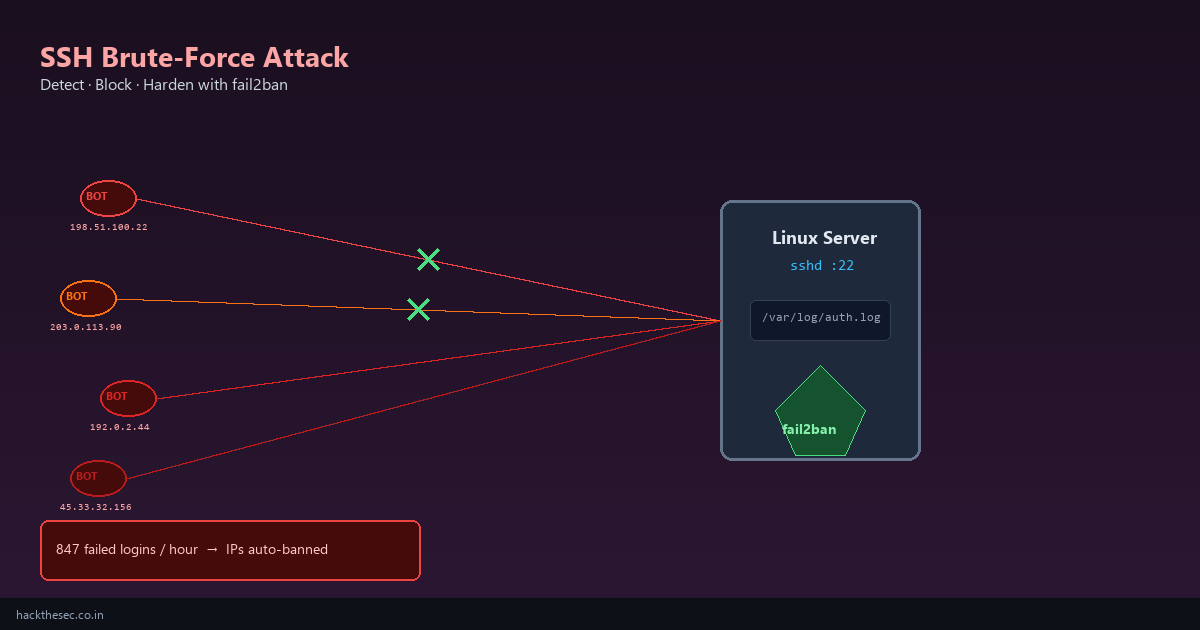
Port 22 is scanned constantly. Bots hammer every public Linux server with thousands of password guesses per hour. If password login is enabled, it is only a matter of time before someone gets in — or your logs fill with noise.
This guide walks through the full workflow: detect brute-force attempts in auth.log, analyze attacking IPs, block repeat offenders with fail2ban, and harden OpenSSH so the attack surface shrinks permanently.
Time required: 30–45 minutes. Tested on: Ubuntu 22.04/24.04, Debian 12, AlmaLinux 9, Rocky Linux 9.
Table of contents
- How SSH brute-force attacks work
- Find failed logins in auth.log
- Identify top attacking IPs and usernames
- Install and configure fail2ban
- Harden sshd before enabling bans
- Monitor bans and tune jail settings
- Whitelist trusted IPs
- Send alerts and integrate with firewall
- Common mistakes and troubleshooting
1. How SSH brute-force attacks work
Attackers run automated tools that connect to port 22 and try common username/password combinations: root/root, admin/admin, ubuntu/ubuntu, and dictionary words. Each failed attempt writes a line to the authentication log.
- Debian/Ubuntu:
/var/log/auth.log - RHEL/Alma/Rocky:
/var/log/secure(orjournalctl -u sshd)
A single bot can generate 500–5,000 failures per day per server. fail2ban watches these logs and adds firewall rules to drop traffic from abusive IPs.
2. Find failed logins in auth.log
On Debian/Ubuntu, run:
# Last 20 failed password attempts
sudo grep 'Failed password' /var/log/auth.log | tail -20

# Failed attempts in the last hour
sudo grep "$(date '+%b %e %H')" /var/log/auth.log | grep 'Failed password'

# RHEL / AlmaLinux
sudo grep 'Failed password' /var/log/secure | tail -20
sudo journalctl -u sshd --since '1 hour ago' | grep 'Failed password'
Typical log line:
Failed password for invalid user admin from 203.0.113.90 port 54321 ssh2The IP address is usually the second-to-last field before port. Invalid usernames like admin, test, oracle indicate automated scanning — not a legitimate user typo.
3. Identify top attacking IPs and usernames
# Top 15 source IPs by failed login count
sudo grep 'Failed password' /var/log/auth.log \
  | awk '{print $(NF-3)}' | sort | uniq -c | sort -rn | head -15

# Usernames attackers tried most
sudo grep 'Invalid user' /var/log/auth.log \
  | awk '{print $8}' | sort | uniq -c | sort -rn | head -10

# Count failures in last 24 hours
sudo grep "$(date '+%b %e')" /var/log/auth.log | grep -c 'Failed password'
If you see one IP with hundreds of failures, block it manually while setting up fail2ban:
# ufw
sudo ufw deny from 203.0.113.90

# firewalld
sudo firewall-cmd --permanent --add-rich-rule='rule family=ipv4 source address=203.0.113.90 reject'
sudo firewall-cmd --reload
4. Install and configure fail2ban
# Debian / Ubuntu
sudo apt update && sudo apt install -y fail2ban

# RHEL / Alma / Rocky
sudo dnf install -y epel-release
sudo dnf install -y fail2ban fail2ban-firewalld

sudo systemctl enable --now fail2ban
sudo fail2ban-client status
Create a local override (never edit jail.conf directly):
sudo tee /etc/fail2ban/jail.local <<'EOF'
[DEFAULT]
bantime  = 1h
findtime = 10m
maxretry = 5
backend = auto

[sshd]
enabled = true
port    = ssh
filter  = sshd
logpath = /var/log/auth.log
maxretry = 4
bantime  = 24h
EOF
On RHEL family, change logpath to /var/log/secure or use backend = systemd with journalmatch = _SYSTEMD_UNIT=sshd.service.
sudo systemctl restart fail2ban
sudo fail2ban-client status sshd
Expected output includes Currently banned and Total banned counts.
5. Harden sshd before enabling bans
fail2ban is a safety net — not a substitute for proper SSH configuration. Edit /etc/ssh/sshd_config:
PermitRootLogin no
PasswordAuthentication no
PubkeyAuthentication yes
MaxAuthTries 3
LoginGraceTime 30
AllowUsers deploy admin
# Optional: change port (security through obscurity — use with firewall)
# Port 2222
Generate and deploy SSH keys if you have not already:
ssh-keygen -t ed25519 -C "admin@yourdomain.com"
ssh-copy-id -i ~/.ssh/id_ed25519.pub user@203.0.113.10
Validate and reload — keep a second SSH session open while testing:
sudo sshd -t && sudo systemctl reload sshd6. Monitor bans and tune jail settings
# Live sshd jail status
sudo fail2ban-client status sshd

# List banned IPs
sudo fail2ban-client get sshd banip

# Unban one IP (if you locked yourself out from a shared NAT)
sudo fail2ban-client set sshd unbanip 198.51.100.22

# Recent ban events
sudo tail -50 /var/log/fail2ban.log | grep Ban
Tuning guidelines:
- Corporate NAT: raise
maxretryto 8–10 or whitelist office IP - High-traffic server: shorten
findtimeto catch rapid bursts - Persistent attackers: increase
bantimeto 7d or use-1(permanent)
7. Whitelist trusted IPs
Never ban your office, VPN, or monitoring server:
sudo tee -a /etc/fail2ban/jail.local <<'EOF'
[DEFAULT]
ignoreip = 127.0.0.1/8 ::1 203.0.113.0/24 198.51.100.50
EOF
sudo systemctl restart fail2ban
8. Send alerts and integrate with firewall
fail2ban can email on ban events. Add to jail.local:
[DEFAULT]
destemail = admin@yourdomain.com
sender    = fail2ban@yourdomain.com
action    = %(action_mwl)s
Install mailutils or configure Postfix relay first. fail2ban uses iptables/nftables (via ufw or firewalld) automatically — banned IPs are dropped at the network layer before reaching sshd.
9. Common mistakes and troubleshooting
- fail2ban not banning: wrong
logpath— checksudo fail2ban-client status sshdforFile list - Locked yourself out: use cloud console/VNC; run
fail2ban-client set sshd unbanip YOUR_IP - Bans not persisting across reboot: ensure
systemctl enable fail2ban - Still seeing brute-force in logs: normal — attempts are logged before ban triggers; verify IPs appear in ban list
- Password auth still on: disable it — fail2ban alone cannot stop a successful guess
Bottom line: read auth.log weekly, run fail2ban on every internet-facing Linux server, and disable SSH password authentication. Together these steps stop the vast majority of automated SSH attacks cold.