

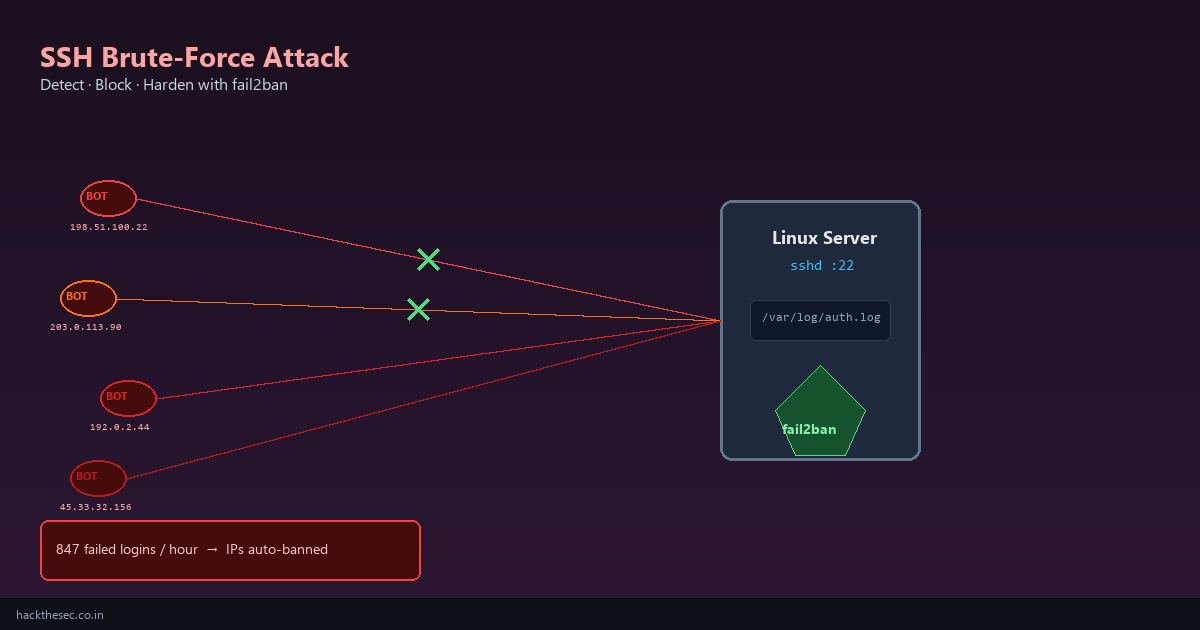
SSH is the front door to every Linux server. It is also the most attacked service on the internet — bots scan port 22 continuously, trying thousands of username/password combinations.
Our fail2ban detection guide shows how to react to attacks. This checklist is the proactive hardening layer: configure OpenSSH so attacks cannot succeed even before fail2ban kicks in. We cover:
- SSH key authentication (disable passwords)
- Disable root login
- Custom SSH port (with firewall caveats)
AllowUsers/AllowGroupsrestrictions- Additional sshd_config hardening
Time required: 30–45 minutes. Critical: keep a second SSH session open while applying changes.
Table of contents
- Pre-flight: backup access path
- Generate and deploy SSH keys
- Disable password authentication
- Disable root login (PermitRootLogin)
- Restrict users with AllowUsers / AllowGroups
- Change SSH port safely
- Additional sshd_config hardening
- Validate config and reload sshd
- Firewall rules for new port
- Full hardening checklist (copy-paste)
- Common mistakes
1. Pre-flight: never lock yourself out
- Open two SSH sessions to the server
- Ensure cloud console / IPMI / serial access works
- Backup current config:
sudo cp -a /etc/ssh/sshd_config /etc/ssh/sshd_config.bak.$(date +%F) - Apply changes in session #1; test new login in session #2 before closing session #1
2. Generate and deploy SSH keys
On your admin workstation (not the server):
# Ed25519 — modern default (preferred)
ssh-keygen -t ed25519 -a 100 -C "admin@yourdomain.com" -f ~/.ssh/id_ed25519_prod

# Or RSA 4096 for legacy compatibility
ssh-keygen -t rsa -b 4096 -C "admin@yourdomain.com" -f ~/.ssh/id_rsa_prod

# Deploy public key to server
ssh-copy-id -i ~/.ssh/id_ed25519_prod.pub deploy@203.0.113.10

# Test key login BEFORE disabling passwords
ssh -i ~/.ssh/id_ed25519_prod deploy@203.0.113.10
On the server, verify authorized_keys permissions:
# Correct permissions (OpenSSH is strict)
chmod 700 ~/.ssh
chmod 600 ~/.ssh/authorized_keys
chown -R $USER:$USER ~/.ssh
3. Disable password authentication
Edit /etc/ssh/sshd_config (or drop-in under /etc/ssh/sshd_config.d/):
# /etc/ssh/sshd_config.d/99-hardening.conf
PubkeyAuthentication yes
PasswordAuthentication no
KbdInteractiveAuthentication no
ChallengeResponseAuthentication no
UsePAM yes
On Ubuntu 22.04+, PasswordAuthentication may be overridden in /etc/ssh/sshd_config.d/50-cloud-init.conf — set it explicitly in your 99-hardening.conf after cloud-init or edit the cloud-init drop-in.
4. Disable root login
PermitRootLogin no
# Alternative: key-only root (NOT recommended for internet-facing servers)
# PermitRootLogin prohibit-password
Create a sudo-capable admin user if you rely on root today:
sudo useradd -m -s /bin/bash deploy
sudo usermod -aG wheel deploy      # RHEL
sudo usermod -aG sudo deploy        # Ubuntu
sudo mkdir -p /home/deploy/.ssh
sudo cp ~/.ssh/authorized_keys /home/deploy/.ssh/
sudo chown -R deploy:deploy /home/deploy/.ssh
sudo chmod 700 /home/deploy/.ssh
sudo chmod 600 /home/deploy/.ssh/authorized_keys
5. AllowUsers and AllowGroups
Whitelist only accounts that need SSH — everyone else is denied regardless of credentials:
# Only these users may SSH in
AllowUsers deploy admin backup-agent

# Or restrict by group
AllowGroups ssh-users wheel

# Deny specific accounts explicitly
DenyUsers guest test oracle
DenyGroups nobody
Create the group and assign users:
sudo groupadd ssh-users
sudo usermod -aG ssh-users deploy
sudo usermod -aG ssh-users admin
Warning: if AllowUsers is set and your username is not listed, you will be locked out immediately on reload. Double-check spelling.
6. Change SSH port safely
Changing port reduces log noise (security through obscurity — not a substitute for keys). Do this after key auth works:
# In sshd_config
Port 2222

# SELinux (RHEL) — allow non-standard port
sudo semanage port -a -t ssh_port_t -p tcp 2222
# Or if already defined:
sudo semanage port -m -t ssh_port_t -p tcp 2222
Order matters:
- Add firewall rule for port 2222
- Change Port in sshd_config
sshd -t && systemctl reload sshd- Test:
ssh -p 2222 -i ~/.ssh/id_ed25519_prod deploy@203.0.113.10 - Remove old port 22 firewall rule only after confirming new port works
7. Additional sshd_config hardening
# Authentication limits
MaxAuthTries 3
LoginGraceTime 30
MaxSessions 4
MaxStartups 10:30:60

# Disable empty passwords and weak methods
PermitEmptyPasswords no
HostbasedAuthentication no
IgnoreRhosts yes

# Logging
LogLevel VERBOSE

# Disable X11 forwarding (unless needed)
X11Forwarding no

# Strong ciphers (OpenSSH 8+ defaults are usually fine)
Ciphers chacha20-poly1305@openssh.com,aes256-gcm@openssh.com
MACs hmac-sha2-512-etm@openssh.com,hmac-sha2-256-etm@openssh.com
KexAlgorithms curve25519-sha256,curve25519-sha256@libssh.org

# Idle timeout
ClientAliveInterval 300
ClientAliveCountMax 2
8. Validate and reload
# Syntax check — MUST pass before reload
sudo sshd -t

# Reload (keeps existing sessions)
sudo systemctl reload sshd

# Or restart if reload insufficient
sudo systemctl restart sshd

# Confirm listening port
sudo ss -tlnp | grep sshd
Open a new terminal and test login. Do not close your existing session until confirmed.
9. Firewall rules for SSH port
# ufw (Ubuntu/Debian) — new port
sudo ufw allow 2222/tcp comment 'SSH hardened'
sudo ufw status numbered
# After testing, delete old rule:
sudo ufw delete allow 22/tcp

# firewalld (RHEL)
sudo firewall-cmd --permanent --add-port=2222/tcp
sudo firewall-cmd --permanent --remove-service=ssh
sudo firewall-cmd --reload

# Restrict SSH to office/VPN IP only (recommended)
sudo ufw delete allow 2222/tcp
sudo ufw allow from 198.51.100.50 to any port 2222 proto tcp comment 'Office VPN'
10. Full hardening checklist
Copy this checklist for every new server:
- ☐ SSH keys deployed; password login tested then disabled
- ☐
PermitRootLogin no - ☐
AllowUsersorAllowGroupsset - ☐ Non-default port (optional) + firewall updated + SELinux port label
- ☐
MaxAuthTries 3,LoginGraceTime 30 - ☐ fail2ban or ufw rate-limit on SSH port
- ☐ OS firewall enabled (ufw / firewalld)
- ☐
sshd -tpasses; config backed up - ☐ Monitoring alert on SSH auth failures
11. Common mistakes
- Disabling passwords before testing keys: instant lockout
- AllowUsers typo: your username missing from the list
- Changed port without firewall: connection refused from outside
- SELinux on RHEL: forgot
semanage port— sshd fails to bind - Cloud security group: updated OS firewall but not AWS/DigitalOcean SG
- Only hardening sshd: pair with fail2ban detection and firewall default-deny
Bottom line: SSH hardening is non-negotiable on every Linux server. Keys only, no root, restrict users with AllowUsers, tune auth limits, and update firewalls when changing ports. Layer this on top of fail2ban and our firewall basics guide for a complete SSH defense stack.