

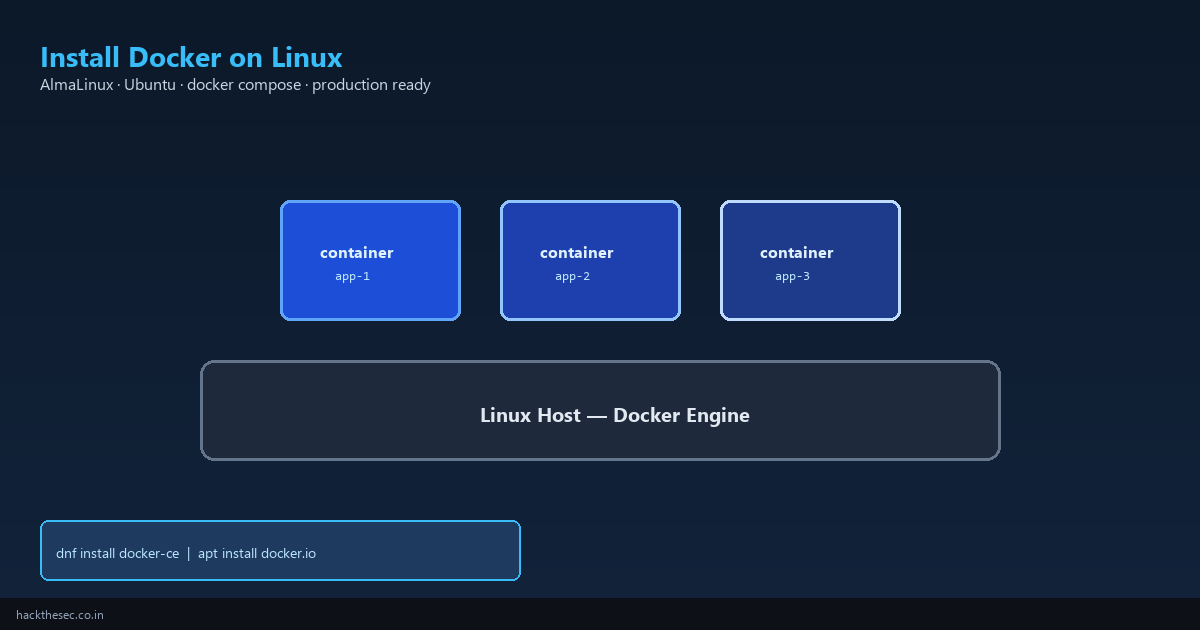
Docker packages applications with their dependencies into containers — isolated, portable, and consistent from laptop to production. Whether you run AlmaLinux in a datacenter or Ubuntu on a cloud VM, this guide installs Docker Engine correctly, configures permissions, enables startup on boot, and covers security basics.
Time required: 20–30 minutes. Tested on: AlmaLinux 9, Rocky Linux 9, Ubuntu 22.04, Ubuntu 24.04.
Table of contents
- What Docker installs on your system
- Install Docker on AlmaLinux / Rocky / RHEL
- Install Docker on Ubuntu / Debian
- Post-install: permissions and hello-world
- Enable Docker on boot
- Install Docker Compose plugin
- Basic security hardening
- Common issues and fixes
- Uninstall Docker cleanly
1. What gets installed
- docker-ce — Docker Engine (daemon + CLI)
- containerd.io — container runtime
- docker-compose-plugin —
docker compose(v2, recommended)
Do not install Docker from default distro repos on RHEL family — versions are too old. Use the official Docker CE repository.
2. Install on AlmaLinux / Rocky / RHEL 9
# Remove old/conflicting packages
sudo dnf remove -y docker docker-client docker-common \
  docker-latest docker-latest-logrotate docker-logrotate podman-docker 2>/dev/null || true

# Install prerequisites
sudo dnf install -y dnf-plugins-core

# Add official Docker CE repo
sudo dnf config-manager --add-repo \
  https://download.docker.com/linux/centos/docker-ce.repo

# Install Docker Engine + Compose plugin
sudo dnf install -y docker-ce docker-ce-cli containerd.io \
  docker-buildx-plugin docker-compose-plugin

# Start and enable
sudo systemctl enable --now docker
sudo systemctl status docker
3. Install on Ubuntu 22.04 / 24.04
# Remove old packages
sudo apt remove -y docker docker-engine docker.io containerd runc 2>/dev/null || true

# Prerequisites
sudo apt update
sudo apt install -y ca-certificates curl gnupg

# Add Docker GPG key and repo
sudo install -m 0755 -d /etc/apt/keyrings
curl -fsSL https://download.docker.com/linux/ubuntu/gpg \
  | sudo gpg --dearmor -o /etc/apt/keyrings/docker.gpg
sudo chmod a+r /etc/apt/keyrings/docker.gpg

echo "deb [arch=$(dpkg --print-architecture) signed-by=/etc/apt/keyrings/docker.gpg] \
  https://download.docker.com/linux/ubuntu $(. /etc/os-release && echo $VERSION_CODENAME) stable" \
  | sudo tee /etc/apt/sources.list.d/docker.list

sudo apt update
sudo apt install -y docker-ce docker-ce-cli containerd.io \
  docker-buildx-plugin docker-compose-plugin

sudo systemctl enable --now docker
4. Post-install setup
# Verify installation
docker --version
docker compose version

# Run test container
sudo docker run hello-world

# Allow your user to run docker without sudo
sudo usermod -aG docker $USER
# Log out and back in for group change to take effect

# Verify as non-root (after re-login)
docker run hello-world
5. Enable on boot
sudo systemctl is-enabled docker   # should print: enabled
sudo systemctl enable docker      # if not already

# Configure Docker to start after network is up
sudo systemctl edit docker
# Add: [Unit] After=network-online.target
6. Docker Compose
Docker Compose v2 is included as a plugin — use docker compose (with space), not the old docker-compose standalone binary.
# Example docker-compose.yml
mkdir ~/myapp && cd ~/myapp
cat > docker-compose.yml <<'EOF'
services:
  web:
    image: nginx:alpine
    ports:
      - "8080:80"
    restart: unless-stopped
EOF

docker compose up -d
curl http://localhost:8080
7. Security basics
- Don't expose Docker socket (
/var/run/docker.sock) to containers or the internet — it is root-equivalent access - Use specific image tags — avoid
:latestin production (pinnginx:1.27-alpine) - Run containers as non-root where possible:
user: "1000:1000" - Limit resources:
--memory=512m --cpus=1 - Keep Docker updated:
sudo dnf update docker-ceorsudo apt upgrade docker-ce - Firewall: published ports (
-p 8080:80) bypass ufw for that port — use firewall rules on the host
# See what is listening
sudo ss -tlnp | grep docker

# Scan images for known CVEs (install trivy)
docker images
# trivy image nginx:alpine
8. Common issues
- Permission denied: user not in
dockergroup —sudo usermod -aG docker $USERand re-login - Cannot connect to daemon:
sudo systemctl start docker - ufw + Docker: Docker manipulates iptables — published ports may bypass ufw; use
ufw-dockeror bind to 127.0.0.1 - SELinux on AlmaLinux: containers may need
:zvolume flags —docker run -v /data:/data:z ... - Disk full:
docker system prune -aremoves unused images (careful in production)
9. Uninstall
# AlmaLinux / RHEL
sudo systemctl stop docker
sudo dnf remove -y docker-ce docker-ce-cli containerd.io \
  docker-buildx-plugin docker-compose-plugin
sudo rm -rf /var/lib/docker /var/lib/containerd

# Ubuntu
sudo apt purge -y docker-ce docker-ce-cli containerd.io \
  docker-buildx-plugin docker-compose-plugin
sudo rm -rf /var/lib/docker /var/lib/containerd
Bottom line: install Docker CE from the official repository, add your user to the docker group, verify with hello-world, and pin image versions in production. Pair container security with host patching — container escapes target the Linux kernel underneath.