

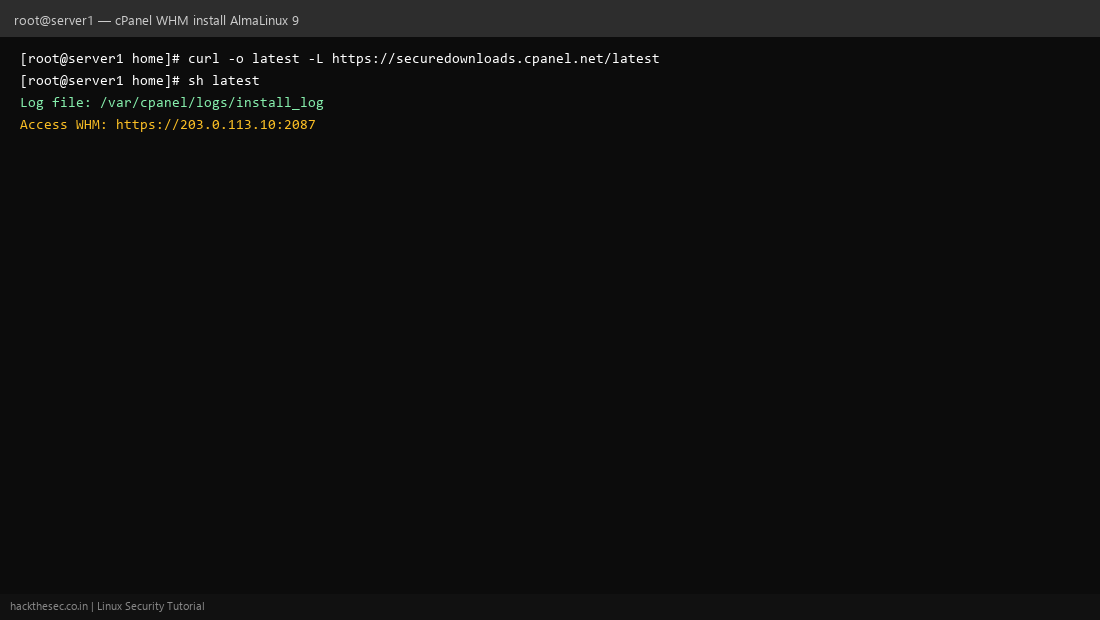
This is a complete, production-style guide to install cPanel & WHM on a fresh AlmaLinux 9 VPS or dedicated server. You will prepare the OS, run the official installer, read the real install logs, finish the WHM setup wizard, and verify Apache, MySQL, and the first cPanel account.
Time required: 45–90 minutes (installer download + compile). License: cPanel requires a paid license — trial available for new IPs.
Table of contents
- Server requirements
- Pre-install checklist (hostname, DNS, firewall)
- Prepare AlmaLinux 9
- Download and run the cPanel installer
- Monitor cPanel install logs (what each stage means)
- First WHM login and initial setup wizard
- Create your first cPanel account
- Post-install hardening and verification
- Common install errors and log fixes
1. Server requirements
- OS: AlmaLinux 9 / Rocky Linux 9 / CloudLinux 9 (64-bit)
- RAM: Minimum 2 GB (4 GB+ recommended for production)
- Disk: 20 GB minimum (40 GB+ for mail and backups)
- CPU: 1 core minimum (2+ for shared hosting)
- Network: Static IPv4, resolvable hostname (FQDN)
- Ports: 22, 53, 80, 443, 2083, 2087, 2089, 3306 (see full list in WHM docs)
2. Pre-install checklist
cPanel is picky about hostname and DNS. Fix these before running the installer.
# Set FQDN hostname (replace with your domain)
hostnamectl set-hostname server1.example.com
hostname -f

# /etc/hosts must resolve the FQDN to your server IP
cat <<'EOF' | sudo tee -a /etc/hosts
203.0.113.10   server1.example.com server1
EOF

# Verify forward + reverse DNS (PTR) with your provider
dig +short server1.example.com
dig +short -x 203.0.113.10
Do not install Apache, Nginx, MySQL, or PHP before cPanel — the installer manages the full stack and will conflict with pre-installed packages.
3. Prepare AlmaLinux 9
# Update base OS
sudo dnf update -y
sudo dnf install -y curl wget perl

# Disable AlmaLinux firewall during install (re-enable after WHM config)
sudo systemctl stop firewalld
sudo systemctl disable firewalld

# Disable SELinux enforcement (cPanel sets this; required on fresh install)
sudo setenforce 0
sudo sed -i 's/^SELINUX=enforcing/SELINUX=disabled/' /etc/selinux/config

# Optional: disable NetworkManager if your provider requires static config
# cPanel documents both NM and sysconfig — keep NM if unsure
sudo timedatectl set-timezone Asia/Kolkata
4. Download and run the cPanel installer
Run as root from /home using the official cPanel bootstrap script:
cd /home
curl -o latest -L https://securedownloads.cpanel.net/latest
ls -lh latest
sh latest
Expected first output from the installer:
Verifying archive integrity... OK
Uncompressing cPanel & WHM Installer..................
Beginning main installation.
Started installation process. Log file: /var/cpanel/logs/install_log
The installer runs in the foreground for 45–90 minutes. Keep your SSH session open. Use a second terminal to watch logs (next section).
5. Monitor cPanel install logs
Primary log file during installation:
tail -f /var/cpanel/logs/install_logSample realistic install_log output (stages you should recognize):
[2026-08-23 18:04:12 +0530] Preparing system for cPanel & WHM installation...
[2026-08-23 18:04:15 +0530] Ensuring required Perl modules are installed...
[2026-08-23 18:04:22 +0530] Checking for existing web/mail/sql services... OK
[2026-08-23 18:05:01 +0530] Disabling conflicting services (httpd, mysqld if present)...
[2026-08-23 18:12:44 +0530] Installing cPanel layer 1...
[2026-08-23 18:28:33 +0530] Installing MySQL/MariaDB server...
[2026-08-23 18:45:02 +0530] Installing Apache (EasyApache build starting)...
[2026-08-23 19:02:18 +0530] Installing PHP handlers and extensions...
[2026-08-23 19:31:55 +0530] Installing Exim mail server...
[2026-08-23 19:48:07 +0530] Installing Dovecot (IMAP/POP3)...
[2026-08-23 20:05:44 +0530] Installing BIND/named (DNS)...
[2026-08-23 20:15:33 +0530] Installing WHM interface...
[2026-08-23 20:22:11 +0530] cPanel & WHM installation complete.
[2026-08-23 20:22:12 +0530] Access WHM: https://203.0.113.10:2087
[2026-08-23 20:22:12 +0530] Access cPanel: https://203.0.113.10:2083
Other useful log files during and after install:
# Main install progress
less /var/cpanel/logs/install_log

# EasyApache / web stack build
tail -f /var/cpanel/logs/easyapache/build_log

# General cPanel errors after install
tail -f /usr/local/cpanel/logs/error_log

# Apache error log (post-install debugging)
tail -f /usr/local/apache/logs/error_log

# MySQL/MariaDB
tail -f /var/lib/mysql/*.err 2>/dev/null || journalctl -u mariadb -f
6. First WHM login and initial setup wizard
- Open
https://YOUR_SERVER_IP:2087in a browser. - Log in as root with your server root password.
- Accept the End User License Agreement (EULA).
- Enter contact email for server alerts.
- Configure nameservers (e.g.
ns1.example.com,ns2.example.com). - Set hosting plan defaults (disk, bandwidth, mail limits).
- Enable/disable optional services (FTP, cPHulk brute-force protection).
- Finish wizard — WHM dashboard loads at port 2087.
# Verify WHM/cPanel services after wizard
/usr/local/cpanel/scripts/check_cpanel_rpms --all
whmapi1 system_info
systemctl status cpanel
systemctl status httpd
systemctl status mariadb
Expected healthy service check:
[root@server1 ~]# systemctl status cpanel --no-pager
● cpanel.service - cPanel services
   Active: active (running)

[root@server1 ~]# /usr/local/cpanel/bin/whmapi1 version
  version: 126.0.1
  build: 126.0.1_12345
7. Create your first cPanel account
In WHM: Home → Account Functions → Create a New Account
- Domain:
clientdomain.com - Username:
client1 - Password: strong password
- Package: default or custom hosting plan
- Mail routing: Local Mail Exchanger
# CLI alternative — create account from WHM API
whmapi1 createacct username=client1 domain=clientdomain.com password='StrongPass123!' plan=default
User logs in at https://203.0.113.10:2083 or https://clientdomain.com:2083 after DNS points to the server.
8. Post-install hardening and verification
# Enable CSF firewall (if installed via WHM) or configure firewalld rules
# WHM → Plugins → ConfigServer Security & Firewall

# Force SSL for WHM/cPanel
whmapi1 set_tweaksetting key=requiressl value=1

# Verify open ports
ss -tlnp | grep -E '2083|2087|80|443|53|25|587'

# Test Apache vhost
curl -Ik https://clientdomain.com

# AutoSSL (Let's Encrypt) — WHM → SSL/TLS → Manage AutoSSL
9. Common install errors and log fixes
| Log message / symptom | Fix |
|---|---|
hostname: Name or service not known | Fix FQDN in /etc/hosts and provider PTR record |
Port 53 already in use | Stop systemd-resolved or bind conflict: systemctl stop systemd-resolved |
Insufficient memory in install_log | Upgrade to 4 GB RAM or add swap: fallocate -l 4G /swapfile && mkswap /swapfile |
| Install hangs at MySQL stage | Check /var/lib/mysql/*.err; remove partial install: rm -rf /var/lib/mysql/* and re-run installer only if cPanel support advises |
License expired on WHM login | Activate trial/paid license at manage2.cpanel.net; run /usr/local/cpanel/cpkeyclt |
# Refresh cPanel license if WHM shows license error
/usr/local/cpanel/cpkeyclt

# Re-run check after any failed stage
grep -i error /var/cpanel/logs/install_log | tail -20
grep -i fail /usr/local/cpanel/logs/error_log | tail -20
Quick reference — important paths
- Install log:
/var/cpanel/logs/install_log - WHM error log:
/usr/local/cpanel/logs/error_log - Apache config:
/usr/local/apache/conf/httpd.conf - User web roots:
/home/USERNAME/public_html - WHM URL:
https://IP:2087 - cPanel URL:
https://IP:2083
You now have a fully working cPanel / WHM server on AlmaLinux 9. Next steps: configure backups in WHM, set up AutoSSL, and create hosting packages before onboarding client accounts.